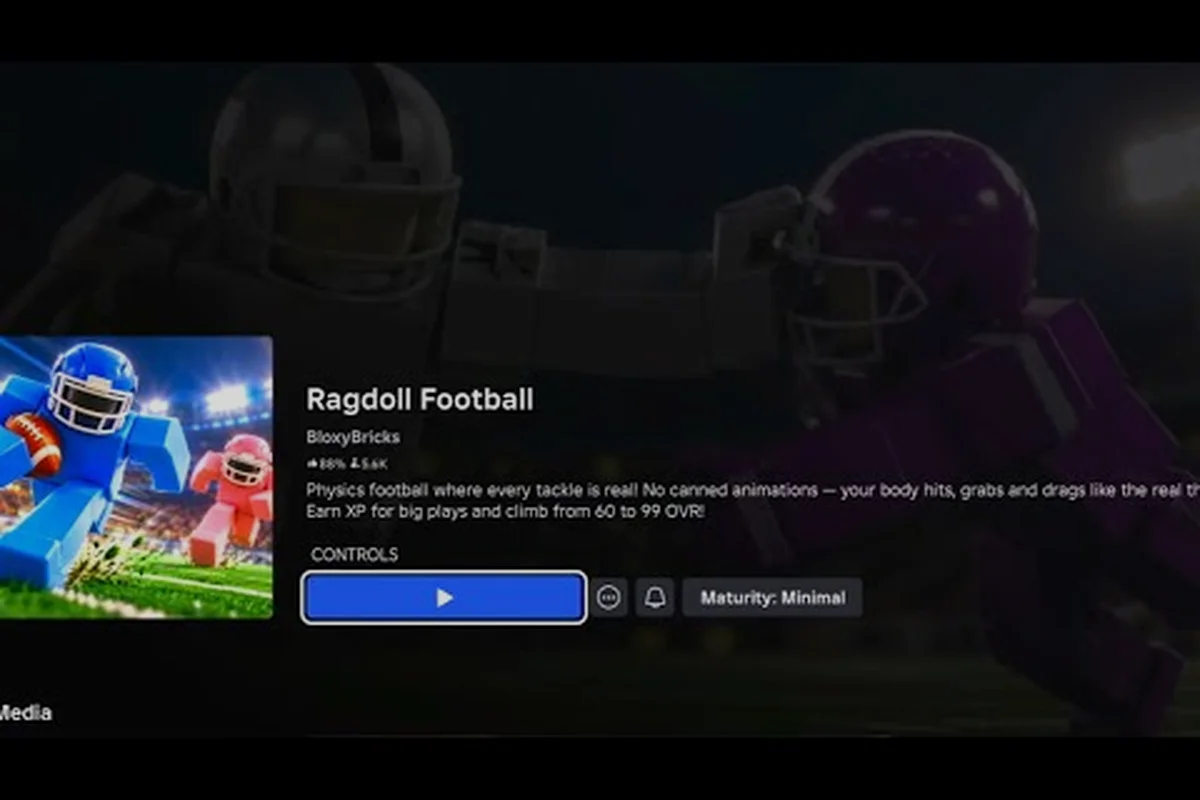
Knowing the right Ragdoll Football tackle button is the difference between a clean stop and a flag on the play, because the physics ragdoll model punishes mistimed lunges more than almost anything else on the field. This guide maps every core input a ball carrier, defender, or kicker needs in 2026 — from the left-click tackle and the right-click throw to the scroll-wheel zoom, camera drag, and the under-used cancel-throw tap that saves a busted play.
Ragdoll Football Tackle Button and Core Hit Inputs
The Ragdoll Football tackle button is the single most pressed control in the entire experience, and understanding how it interacts with movement, sprint, and ball-carrier proximity is what separates a rookie flailing at ankles from a defender who wraps up cleanly. On PC the primary tackle input is the left mouse button, while the dedicated dive variant uses a separate key; console players map both to face-button combos on Xbox and PlayStation pads.
Left Click vs Space: When Each Hit Lands
The default PC layout puts the standing tackle on left click and the jump on space bar, but Ragdoll Football's physics treat them as a sequenced pair rather than two independent actions. Pressing left click without holding a directional key produces a forward lunge, while tapping left click while moving sends your ragdoll stumbling toward the carrier's torso — often overshooting into a pile-up. The safer pattern, reported by community players on the Ragdoll Football touchback controls breakdown, is to stop momentum, hold the angle key toward the ball carrier, and then commit the left-click tackle from a near-stationary stance.
| Input | Action | Best Used When | Risk If Misused |
|---|---|---|---|
| Left Click (standing) | Forward tackle lunge | Closing last 2-3 yards | Overshoots into the ball carrier's back |
| Left Click (moving) | Momentum tackle | Sprinting across the field to catch a runner | Ragdoll flies past the play entirely |
| Space (jump) | Vertical hop, not a tackle | Evading a low tackle, swatting a pass | Often mistaken for a hit; costs position |
| Left Click + Direction | Angled tackle | Wrapping up a sideline runner | Drags the carrier out of bounds |
Dive, Slide, and Wrap-Up Variants
Ragdoll Football supports a dive variant on PC that some players map to a side mouse button, while console users trigger it with a bumper + face button combo. The dive covers more ground than a standing tackle but leaves your ragdoll prone for roughly 1.5 seconds, which is enough time for an offensive lineman (or another defender) to truck-stick you. The wrap-up variant is the same as the standing tackle input but held — your ragdoll grabs onto the carrier's jersey instead of swatting, and it works best when the carrier is already mid-stumble. According to the verified BloxyBricks Roblox creator profile, the studio tuned tackle hitboxes during the September 2026 launch patch, so dive timing windows are slightly tighter than they were during the closed beta.
Ragdoll Football Throw Button and Passing Controls
Passing is the second most-pressed action in any offensive drive, and the Ragdoll Football throw button on PC defaults to right click — a design choice that mirrors many sports sims but catches controller-first players off guard. The right-click throw opens an aiming arc, and the longer you hold the button, the further and higher the ball travels, which is why the cancel-throw input matters so much in scramble situations.
Aiming Arc Mechanics
When you press the Ragdoll Football throw button, a faint dotted line appears in front of your ragdoll showing the projected ball trajectory. The arc is influenced by three factors: how long you hold the right click, which way your left stick or WASD keys are pointed, and whether the camera is centered on the receiver or the quarterback. Most new players under-hold the throw, producing a wobbly duck that gets picked; veteran passers, by contrast, hold the Ragdoll Football throw button until the arc just clears the linebacker's head, then release. The mechanic is detailed further in the Ragdoll Football how tackling works guide, which covers passing windows against aggressive blitzes.
| Hold Duration | Throw Type | Effective Range | Best Receiver Distance |
|---|---|---|---|
| 0.2 - 0.4s | Quick pop pass | 0-5 yards | Slot receiver on a hitch |
| 0.5 - 0.8s | Standard pass | 5-15 yards | Tight end on a curl |
| 0.9 - 1.2s | Deep out | 15-30 yards | Wide receiver on a go route |
| 1.3s+ | Hail Mary | Full field | Last-ditch desperation heave |
How to Cancel a Throw
Cancelling a throw is one of the most under-taught mechanics in the game, and it activates with a quick double-tap of the same button (right click on PC) or a left-trigger tap on console. The cancel input is what you use when you start a throw, see a defender jump the route, and want to pull the ball back down without a flag or a wobbly interception. Players learning how to cancel a throw in Ragdoll Football should practice the timing in a solo lobbia session first; the cancel window lasts roughly 0.3 seconds after release, and missing it means the ball flies anyway. Community testing shared in creator-group posts indicates that the cancel input also resets your pump-fake animation, which lets you freeze a defender for an extra beat before re-throwing.
Ragdoll Football Kick Button and Special-Teams Inputs
Kicking uses a completely separate input from tackling and throwing, and the Ragdoll Football kick button is mapped to F on PC by default, with B or Circle on console. The mechanic works like a power meter: tap once to start the meter, tap again to set the accuracy, and tap a third time to launch the kick. Because the physics ragdoll leans backward on every kick, accuracy is far more sensitive than in traditional football sims.
Power vs Accuracy Trade-off
Kicking in Ragdoll Football is a two-stage process: a horizontal power bar and a vertical accuracy bar. Most new kickers max out power and ignore accuracy, which produces a 60-yard bomb that drifts 20 yards wide right. The optimal pattern, as described in community walkthroughs like this Roblox controls video by ItsChalls, is to fill the power bar to about 75% and then try to land the accuracy marker inside the inner third of the vertical bar. Anything tighter and the kick has the distance but no control; anything looser and the accuracy holds but the kick falls short.
| Kick Style | Power Setting | Accuracy Target | Effective Result |
|---|---|---|---|
| Squib kick | 30-40% | Center | Short, low, no return |
| Standard punt | 60-75% | Inner third | 35-45 yard hang time |
| Maximum field goal | 80-90% | Center top | Just clears the uprights |
| Panic kick | 100% | Random | Often sails out of bounds |
Take-a-Knee and the Touchback Option
When the game is on the line, the safer special-teams input is the take-a-knee, which is V on PC and B or Circle on console. The mechanic mirrors the Wikipedia-documented touchback rule, where a kicked ball that reaches the end zone gives the receiving team the ball at the 20 instead of letting them return it. Ragdoll Football's take-a-knee essentially surrenders the return by having your ragdoll kneel just inside the goal line, and it is the right call when you are up by one score with under 30 seconds left and the opponent has no timeouts remaining.
Ragdoll Football Camera Controls and Zoom Setup
The Ragdoll Football camera controls are the unsung heroes of the control scheme, and most players never touch them, even though they directly affect how well you can read the field on either side of the ball. The default camera follows the ball on offense and your ragdoll on defense, but switching modes takes a single key press and dramatically changes the information you have available.
Camera Modes and Right-Click Drag
On PC, the default camera mode is Ball-Cam (which tracks the ball) for offense and Player-Cam (which tracks your ragdoll) for defense. Holding the right mouse button and dragging rotates the camera freely, which is the input most newcomers use to scout receivers before the snap. The dedicated camera-toggle key, C on PC and Y or Triangle on console, swaps between the two modes instantly and is the cleanest way to verify pre-snap coverage. Community players have noted that swapping to player-cam right before a tackle gives you a much better angle on the wrap-up than the ball-tracking default.
| Camera Mode | Best Used On | Default Trigger | Override Trigger |
|---|---|---|---|
| Ball-Cam | Offense, before snap | Auto when carrying | C key on PC |
| Player-Cam | Defense, mid-tackle | Auto when defending | C key on PC |
| Free-Look (right-click drag) | Pre-snap read, post-tackle pile | Hold right mouse button | Release to recenter |
| Sideline Cam | Spectating a teammate | M on PC | Scroll down + right click |
Zoom Controls and Scroll Wheel Sensitivity
The Ragdoll Football zoom controls are bound to the mouse scroll wheel on PC, with scroll up zooming in and scroll down zooming out. Console players adjust zoom with the right-trigger or a shoulder-button combo, and the on-screen slider moves in fixed increments. The default zoom level is set for a wide field view, which is great for reading the play but terrible for close-quarters tackling; zooming in one notch before committing a tackle gives you a cleaner view of the ball carrier's feet, which is where the hitbox actually lives. Players who remap their zoom step to a finer increment in the Ragdoll Football button layout settings menu report a noticeable improvement in short-yardage tackling.
Throw Aiming Tips, Cancel Strategies, and Controller Tips
The mechanical layer above is what wins games, and combining clean aim with smart cancel decisions is where intermediate players cross into elite territory. Below are field-tested patterns that show up again and again in community discussion, including clips like this ankle-breaking Ragdoll Football highlight reel where every big play starts with a smart pre-snap camera swap and ends with a controlled right-click release.
Pre-Snap Read and Camera Swap Sequence
The cleanest pre-snap routine is: spawn in ball-cam, scroll out one click for a wide view, hold right click to drag the camera toward the strong side of the formation, then tap C to lock to player-cam if you are on defense. This five-second routine gives you full pre-snap information and sets up a smoother post-snap reaction. The sequence is especially valuable on offense, where missing a single read can turn a designed play into a sack, and on defense, where spotting the running back's motion before the snap is often the only clue you get about a run versus a pass.
Throw Aiming Under Pressure
When the pocket collapses and you are mid-scramble, the aiming arc becomes harder to read because the camera is bouncing off the ragdoll's flailing limbs. The trick is to release the right-click throw before the arc fully forms — about 0.2 seconds of hold at close range produces a pass that is catchable even when the camera is in chaos. Players who want to refine their aim further should look at the Ragdoll Football controller support breakdown, which covers the analog stick dead zones that affect how the Ragdoll Football throw button interprets small aim corrections.
When to Cancel and When to Commit
Cancel-throw discipline is what separates panic passers from poised ones, and the rule of thumb is simple: cancel if your primary read is covered and your check-down is within 5 yards, commit if your primary read has a step on the defender. Cancelling burns about a second of clock, which matters in two-minute drills, so cancelling a third time in a single play is almost always a mistake. The cancel input also doubles as a pump-fake, and one well-timed pump-fake at the goal line can freeze a user-controller defender long enough to walk into the end zone uncontested.
Controller-Specific Tips
On Xbox and PlayStation, the Ragdoll Football tackle button is bound to the right bumper by default, with the throw on the right trigger and the kick on a face button. Controller players consistently report that the right trigger's analog throw is harder to time than a mouse click, so they often remap the throw to a face button for binary input. Console dive and hand-off actions live on the left bumper and left trigger respectively, and the camera toggle sits on the Y or Triangle button. For a full mapping chart, the mobile joystick and console layouts are covered in detail in the Ragdoll Football mobile controls reference, which complements the PC inputs above and shows how every button translates across platforms.
Frequently Asked Questions
What is the Ragdoll Football tackle button on PC?
The default PC tackle input is left click, which triggers a forward lunge when stationary and a momentum tackle when moving. Console players map it to the right bumper on Xbox or R1 on PlayStation, and the dive variant is usually a bumper + face button combo.
How do I aim a throw more accurately in Ragdoll Football?
Hold the right-click throw button and watch the dotted arc line — the longer you hold, the further the ball travels. Aim by pointing your movement keys or left stick toward the receiver before you start the throw, and release when the arc just clears the nearest defender's head.
How do I cancel a throw in Ragdoll Football?
Double-tap the right-click throw button on PC, or tap the left trigger on console within roughly 0.3 seconds of starting the throw animation. The cancel resets your arm and lets you pump-fake or scramble without a wobbly duck getting picked off.
What is the Ragdoll Football kick button and how does the meter work?
The kick input is F on PC and B or Circle on console, and it opens a two-stage meter: horizontal power and vertical accuracy. Fill power to about 75% and land the accuracy marker in the inner third for a controlled 35-45 yard punt or a clean field goal.
How do I change the camera and zoom in Ragdoll Football?
Toggle camera modes with C on PC or Y or Triangle on console, and adjust zoom with the mouse scroll wheel on PC or the right trigger on console. Holding right click and dragging rotates the camera freely for pre-snap reads and post-tackle pile views.