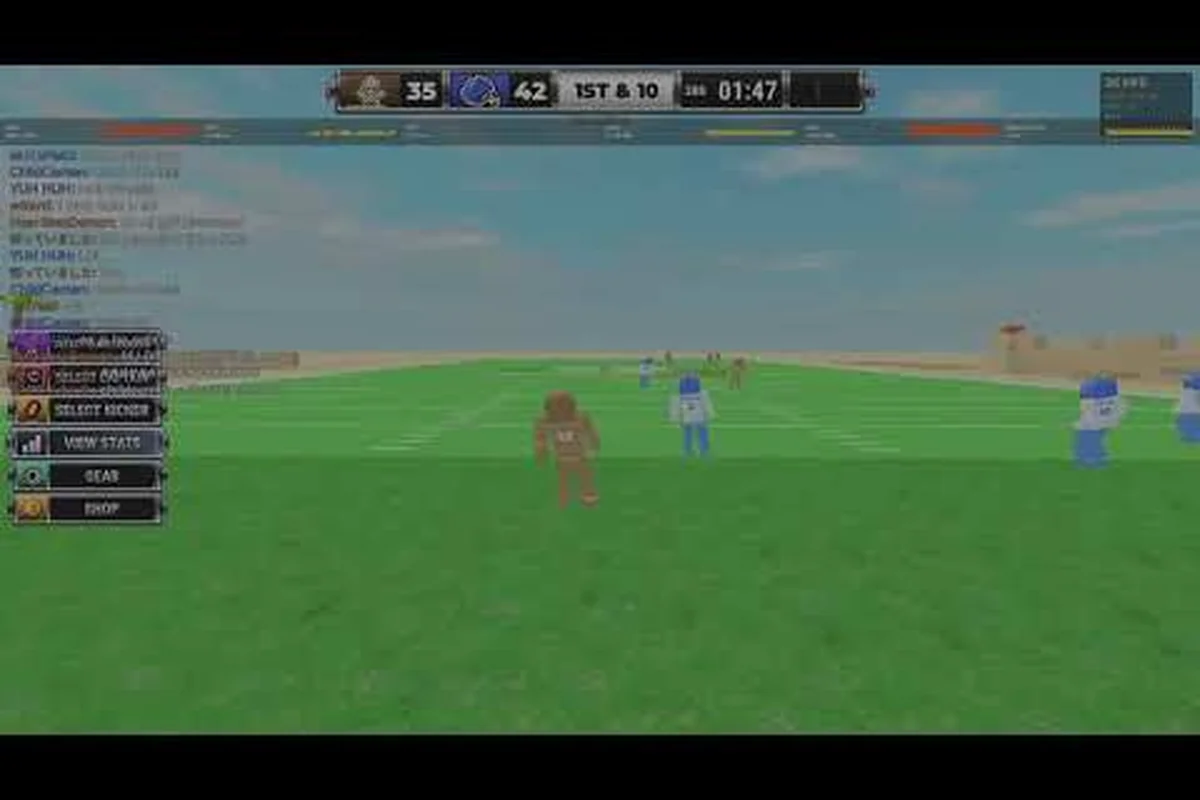
Touch-screen play in Ragdoll Football is its own language, and once you read it, the field opens up. The mobile build condenses every offensive and defensive action into a left thumb zone, a cluster of action buttons, and a swipe-driven camera, while console and PC players split the same actions across dual sticks and a keyboard. The result is a control scheme that feels native on a phone but mirrors the deeper inputs that Ragdoll Football on Roblox ships on every other platform, so muscle memory transfers cleanly.
Ragdoll Football Mobile Controls Overview
For new phone players the learning curve is mostly about placement: your left thumb lives on the virtual stick, your right thumb cycles between Jump, Dive, Tackle, Hand-off, Throw, and Kick, and your right index finger (when in landscape) drags the camera. Veteran console players landing on mobile for the first time should expect slower directional pivots and tighter timing windows on dives because the input is binary rather than analog.
| Input Zone | Touch Area | Main Actions |
|---|---|---|
| Left Thumbstick | Bottom-left corner | Move, sprint, strafe |
| Action Cluster | Bottom-right cluster | Jump, Dive, Tackle, Throw, Kick, Hand-off |
| Camera Pad | Right half of screen | Drag to rotate, pinch to zoom |
| Pause / Menu | Top-right corner | Pause, settings, leave match |
These zones hold across every mode the game ships with, including ranked 5v5, casual pickup, and the practice field. The Roblox engine handles the on-screen overlay, so the same gestures work on iOS, Android, and tablet builds without separate configuration.
On-Screen Joystick and Movement
The virtual joystick anchors the bottom-left corner of the screen and behaves like a soft analog stick. Push your thumb forward to sprint upfield, pull back to retreat, and tap diagonally to cut. Releasing the stick stops your player instantly, which is critical because the ragdoll physics engine treats momentum as a literal force — a half-second late release and your defender sails past the ball carrier into the end zone.
Sensitivity and Sprint
The default sensitivity works for most phone screens, but players who own larger phablets often drop the slider two notches to avoid over-rotation. Sprint is automatic once the stick passes the 70% tilt threshold, so you do not need a separate run button the way the Ragdoll Football PS5 controls require on console. That single-button design is the biggest difference between the mobile and console layouts.
| Sensitivity Setting | Best For | Drawback |
|---|---|---|
| Low (slider 0-3) | Phablets, tablets, beginners | Feels sluggish on small phones |
| Medium (slider 4-6) | Most 6.1"–6.7" screens, recommended | None at launch tuning |
| High (slider 7-10) | Competitive phone players | Easy to over-rotate on contact |
The stick also doubles as the strafe input — push left or right without tilting forward and your player shuffles laterally. This is the safest way to mirror a wide receiver because facing the receiver head-on lets you read the quarterback's arm angle before committing to a tackle.
Jump, Dive, and Action Buttons
The action cluster sits in the bottom-right corner and arranges the most-used inputs within reach of a right thumb arc. Each button triggers an animation that locks your player for a brief recovery window, so button order matters during a real play.
Jump and Dive Stack
The two buttons that phone players press the most are Jump and Dive, and they sit next to each other in the cluster. The Ragdoll Football jump button launches your player vertically with a small forward lean, which is enough to bat down a pass at the catch point but rarely enough to block a kick. The Ragdoll Football dive button sends your player horizontally in the direction of the left stick, and it is the only way to secure a fumble in traffic.
| Button | Action | Best Use | Cooldown |
|---|---|---|---|
| Jump | Vertical leap with forward lean | Pass deflection, high-point catch | ~0.8s |
| Dive | Horizontal lunge, ragdoll tumble | Fumble recovery, goal-line stop | ~1.4s |
| Tackle | Contact hit on ball carrier | Open-field tackle, gang tackle | ~0.6s |
| Hand-off | Pitch to a back | Fake handoff, misdirection | ~0.5s |
| Throw | Lob or bullet pass to a teammate | Quick out, deep post | ~0.3s |
| Kick | Punt or field-goal kick | Kickoff, last-second field goal | ~1.0s |
Because Dive ragdolls the player, the recovery window is long enough that timing it wrong usually costs a touchdown. Practice the dive in solo mode until you can trigger it one frame before contact — the sweet spot is roughly 0.2s before the ball carrier's hitbox overlaps yours.
Stacking Inputs
The most common mistake new phone players make is tapping Jump while still in a Dive recovery, which cancels the dive animation and throws your player off balance. The cleaner sequence is to commit to one action per snap, because the recovery windows stack. If you must combo, finish the Dive first, then Jump as soon as the recovery bar clears.
Console and Cross-Platform Reference
Mobile is the touch-first build, but the same Ragdoll Football how to move logic applies across consoles once you swap sticks for sticks. The Xbox and PlayStation layouts mirror each other because the action set was designed for a standard gamepad, and the PC keyboard map borrows the console layout one-for-one.
| Platform | Move | Jump | Dive | Tackle | Throw | Kick | Hand-off |
|---|---|---|---|---|---|---|---|
| Mobile | Left stick | Jump button | Dive button | Tackle button | Throw button | Kick button | Hand-off button |
| Xbox | Left stick | A | X | B (hold) | Right trigger | Left trigger | Y |
| PlayStation | Left stick | Cross | Square | Circle (hold) | R2 | L2 | Triangle |
| PC | WASD | Space | C | Left click | Left click (aim) | E | Q |
The biggest cross-platform adjustment is the tackle input. On mobile it is a single tap, while on Ragdoll Football Xbox controls and Ragdoll Football PlayStation controls it requires holding the bumper until contact. Holding adds an aiming reticle that mobile lacks, so console players often have an edge on gang tackles near the sideline. Phone players compensate with quick double-taps, which the engine treats as a power tackle with a longer recovery.
Camera and Pause
Every platform uses the same drag-to-rotate and pinch-to-zoom camera, but mobile adds a context-sensitive tap that focuses the camera on the ball carrier. Double-tap the action cluster to lock the camera on whoever holds the ball, which is the fastest way to track a screen pass on a small phone. The pause menu lives behind a single tap on the top-right icon and is identical across mobile, console, and PC.
Practical Tips for Phone Play
Once the layout is muscle memory, small habits separate casual phone players from ranked grinders. Most of the gains come from thumb placement and timing windows, not from raw speed.
Thumb Discipline
Keep your left thumb on the stick at all times and your right thumb on the Tackle button by default. Reach for the other buttons only when the play demands it. Reaching too far — especially toward the Kick button on the right edge — is the leading cause of accidental pauses because the pause icon sits close to the kick button on some phone aspect ratios. If you keep pausing by accident, enable the Confirm Before Pause toggle in the accessibility menu, a setting that console players do not need because their pause button is on a separate bumper.
Pre-Snap Reads
Before the snap, drag the camera behind your defender and read the offensive formation. The on-screen labels show receiver routes in real time once the quarterback is set, which gives phone players the same pre-snap intel that PC players get from keyboard hotkeys. This is the single biggest equalizer between mobile and console, because community guides on YouTube consistently highlight pre-snap reads as the foundation of every ranked push.
Practice Drills
Solo mode includes three drills worth grinding before jumping into ranked: Cone Shuttle for stick sensitivity, Dive Timing for fumble recovery, and Jump Arc for pass deflection. Ten minutes per drill is enough to lock in the timing windows listed above, and the XP rewards compound because each drill counts toward the daily objective that feeds the rank system documented in the Ragdoll Football Rank Up guide.
| Drill | Focus | Recommended Time | Rank XP per Run |
|---|---|---|---|
| Cone Shuttle | Stick rotation, sprint cuts | 10 min | ~120 XP |
| Dive Timing | Fumble recovery, lunges | 10 min | ~150 XP |
| Jump Arc | Pass deflection, high catch | 10 min | ~135 XP |
These drills also teach the recovery windows for the action cluster, which is the part of the ragdoll football mobile controls layout that transfers least cleanly to console. Once the timing is in your thumb, switching to a gamepad feels natural because the action set is the same, only the input device changes.
Frequently Asked Questions
Do mobile and console players play in the same lobbies?
Yes, Ragdoll Football cross-play is enabled by default and phone players queue into the same 5v5 lobbies as Xbox and PlayStation users. The matchmaking system uses input device as a soft MMR factor, so a phone-only account will not face a controller account in the same match in the first 50 ranked games. Community testing reports the soft factor fades after the calibration window.
What is the difference between the Jump and Dive buttons on mobile?
The Jump button sends your player vertically with a small forward lean and is meant for pass deflections and high-point catches, while the Dive button launches your player horizontally as a ragdoll lunge meant for fumble recovery and goal-line stops. Jump recovers in roughly 0.8s; Dive recovers in roughly 1.4s because the ragdoll physics engine has to settle the body before the next input registers.
Can I rebind the on-screen buttons?
Ragdoll Football does not support custom button remapping on mobile because the touch overlay is part of the Roblox engine layer, not a per-game config. Sensitivity sliders are the only adjustable input, and the layout itself is fixed. Console players can use the system-level button remapper on Xbox and PlayStation to swap actions, but phone players are locked to the default arrangement.
Is there a way to play mobile with a controller?
Yes. The Roblox client on iOS and Android supports Bluetooth controllers, and the game recognizes them automatically. When a controller is connected the action cluster disappears and the standard Xbox or PlayStation layout takes over, so the console and mobile control surfaces become identical. The Ragdoll Football controller support guide walks through the pairing steps on both phone platforms.
Why does my player keep ragdolling past the ball?
The ragdoll physics engine treats any contact above a certain velocity as a tumbling event, which is why high-speed tackles and dives send your player sliding past the play. The fix is to release the left stick the instant you make contact, because momentum carries the body forward even after the tackle animation ends. Practicing the Dive Timing drill is the fastest way to internalize the release window.